
Laptop GPU TGP ( Wattage ) – What is it? How important is it?
This guide shows you three ways to check a laptop GPU’s maximum power limit, usually called TGP, GPU wattage or sometimes TDP. You can check it on a laptop you already own or look it up before buying one.
Why bother? Two laptops can have the exact same NVIDIA GPU but different power limits. For example, an RTX 3060 running at 85W won’t necessarily perform as well as one allowed to run at 130W.
2026 update: This is still true for RTX 40 and RTX 50-series laptops. An RTX 5070 Laptop GPU, for example, can be configured anywhere from 50W to 100W in NVIDIA’s published GPU power range. So don’t judge a laptop by the GPU name alone.
Looking for a high-wattage gaming laptop? Check my list of laptops with high-power GPUs.
Already have the laptop? Use NVIDIA Control Panel or HWiNFO64 below. Still shopping? Skip to section B to look up the wattage of a specific model.
A. Check GPU TDP For a Laptop You Have
1. Wattage from NVIDIA Control Panel
Step 1: Open NVIDIA Control Panel.
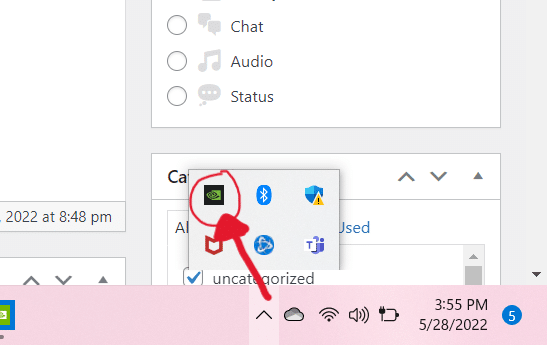
You can usually find it by right-clicking the desktop, searching for it in the Start menu or opening it from the NVIDIA icon in the system tray. Here’s where I found it on my laptop:
The Control Panel should look something like this. If you can’t find it, check that your laptop has an NVIDIA GPU and that its NVIDIA graphics driver and Control Panel are installed. The menus may look a little different on newer drivers.

Step 2: Click System Information, usually at the bottom-left corner.
Look for Maximum Graphics Power. That’s the number we’re after: the maximum graphics power reported for your laptop GPU, rather than its moment-to-moment power consumption.
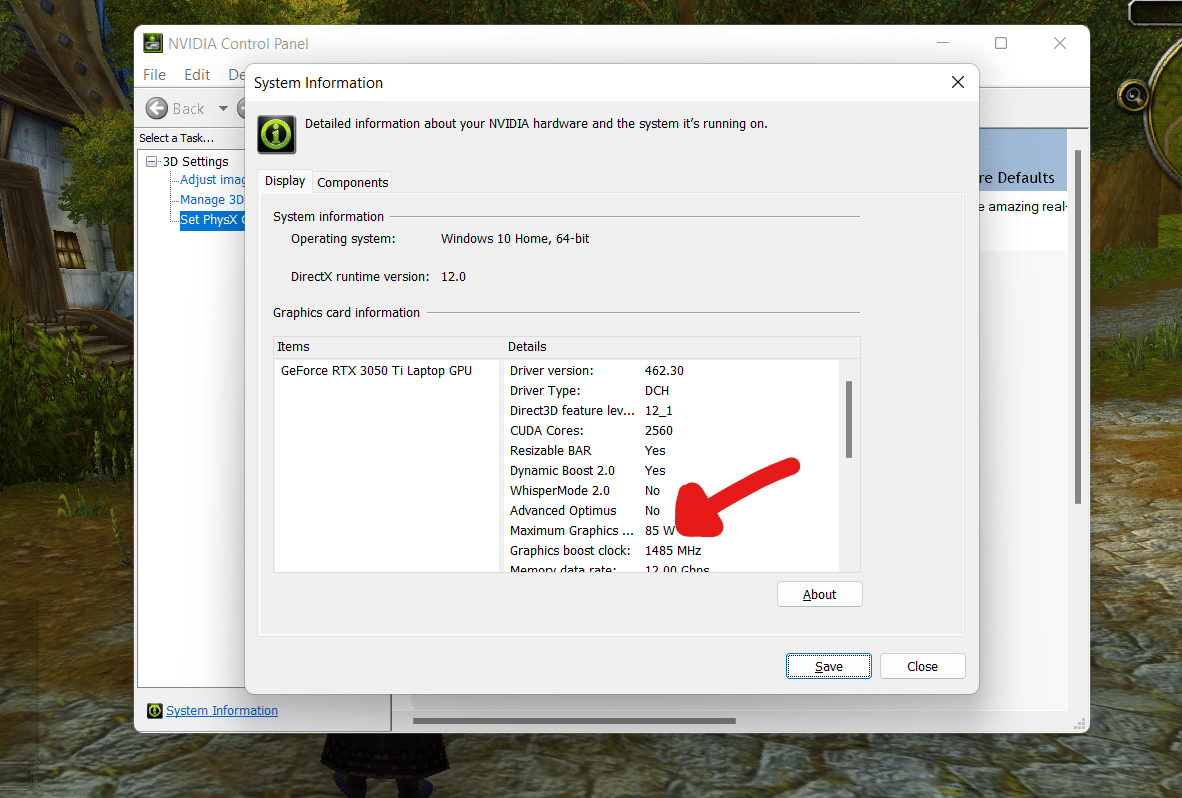
If the field is missing, try updating your NVIDIA drivers. Some laptops and driver versions may not report it, so you can also check the manufacturer’s specifications or try the next method.
One thing to keep in mind: This is the reported maximum, not a promise that your GPU will use that much power in every game. Actual wattage depends on the game, temperatures, power settings and CPU usage.
What about Dynamic Boost?
Dynamic Boost lets supported laptops shift some of the available power between the CPU and GPU when needed. For example, a laptop might advertise a GPU power figure that includes an extra Dynamic Boost allowance. That extra power isn’t necessarily available all the time.
Here’s the old Manage 3D Settings menu I used when I first wrote this guide:

Note for RTX 30, 40 and 50-series owners: Don’t worry if you can’t find the old Dynamic Boost switch shown in this screenshot. NVIDIA no longer exposes that particular setting on RTX 30-series laptops and newer. Check the exact laptop’s published maximum GPU power instead.
Optional: Checking the GPU’s boost clock
On some older RTX laptop GPUs, the listed boost clock can provide another clue about which power configuration you have. Here’s the boost clock shown for my RTX 3050 Ti:
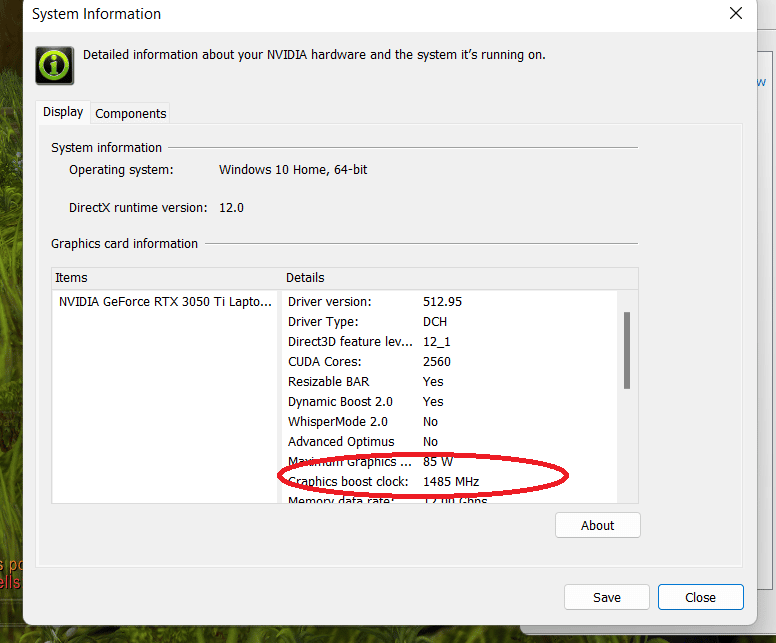
Mine lists 1485MHz. I compared that with the RTX 3050 Ti reference specifications on Notebookcheck.
RTX 3050 Ti: Clock Speed vs. TDP
| TDP(Wattage) | 35W | 40W | 45W | 50W | 60W | 70W | 80W |
| Base Clock Speed | 735Mhz | 915Mhz | 1043Mhz | 1140Mhz | 1223MHz | 1350Mhz | 1464Mhz |
| Boost Clock Speed | 1035Mhz | 1185Mhz | 1290Mhz | 1410MHz | 1485Mhz | 1598Mhz | 1695Mhz |
The 1485MHz boost clock lines up with the 60W column. So my laptop had a lower-power RTX 3050 Ti configuration than I had hoped for. Live and learn!
For newer RTX 40 and 50-series laptops, don’t use clock speed alone to determine wattage. Clock speeds change dynamically and different power configurations can overlap. NVIDIA Control Panel and the exact laptop specifications are better starting points.
If you want to see how many watts your GPU actually draws while gaming, try HWiNFO64 next.
2. Check GPU Wattage Using HWiNFO64
HWiNFO64 is useful for checking actual GPU power usage while a game is running. It’s a good way to see whether the GPU gets close to its advertised maximum, although a low reading by itself doesn’t prove the laptop has a low TGP limit.
Step 1: Download HWiNFO64.
Get it from the official HWiNFO website. Open the sensors window so you can monitor the GPU power readings.

Step 2: Launch a demanding game.
I’ll use Call of Duty as an example. Plug the laptop into its charger and use its normal high-performance gaming mode. Otherwise, battery-saving settings may keep wattage down.
Step 3: Turn up the graphics settings.
Try Ultra settings and a higher resolution such as 1440p, if your laptop can handle it. Disable any frame-rate cap temporarily if you want to test a heavier GPU load. There’s no need to push settings beyond what the laptop can safely handle.

Step 4: Check the GPU power reading in HWiNFO64.
Look for a GPU power sensor, sometimes labeled GPU Power or GPU Power Draw. The Maximum column records the highest power observed since you opened or reset the sensors. You can leave the sensors running while you play and check the result afterward.
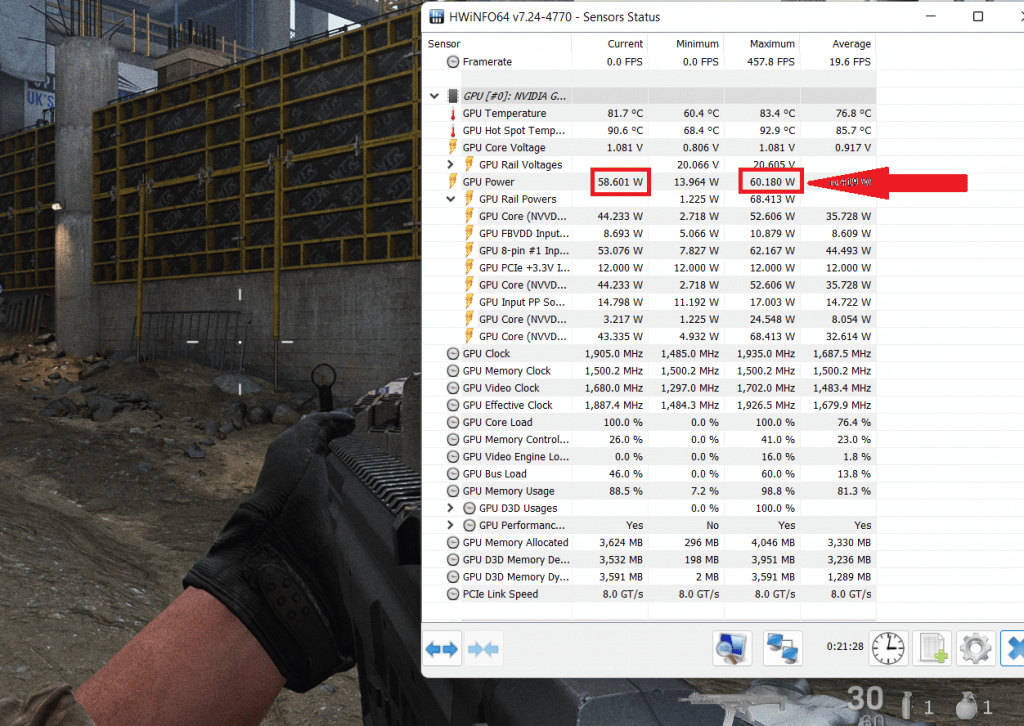
That’s it. Just remember that HWiNFO measures what the GPU used during your test, not necessarily the factory-set maximum. If it stays well below the advertised TGP, try a different demanding game and check your cooling and performance mode before assuming the GPU is locked to a lower wattage.
B. Check Laptop GPU Wattage Before Purchase
This is the part I’d pay the most attention to when buying a gaming laptop. A listing might say RTX 5060 or RTX 5070 without mentioning the wattage at all. You need the power figure for the exact laptop model and GPU configuration, not just the GPU name.
I usually start with the manufacturer’s website or PDF spec sheet. If they don’t mention TGP, I look for a detailed review on sites such as Notebookcheck, or an owner who has posted a screenshot of the laptop’s NVIDIA System Information window. Always double-check that the model number matches.
Method 1: Search by laptop model and GPU
Type the laptop model + GPU + TGP or maximum graphics power into Google.
Older example: “Lenovo IdeaPad Gaming RTX 3050 Ti wattage”

Don’t assume the first search result is correct. In my original search, the useful result was Lenovo’s PDF specification sheet. Open the GPU section and check what power it lists.

Newer example: Search “RTX 5070 laptop model maximum graphics power” and replace “laptop model” with the actual model you’re considering. For RTX 50-series laptops, this is especially useful because GPU power limits still vary a lot between machines.
Method 2: Search using a suspected wattage
If the regular search doesn’t help, add a wattage figure you think the laptop might use. Try the model name, GPU and something like 85W, 100W, 115W or 130W. This sometimes turns up spec sheets, forum discussions or reviews that don’t use the term TGP.
Example: “MSI GP76 Raider RTX 3080 130W”

This is just a search trick, though. Finding a result that mentions 130W doesn’t mean your exact configuration runs at 130W. Verify it against the manufacturer’s specifications or a review of the same model.
One last thing: some listings quote a base GPU power and others quote a maximum including Dynamic Boost. Make sure you’re comparing the same kind of figure. Higher wattage can help, but it doesn’t guarantee higher FPS if cooling or the GPU itself becomes the limiting factor.
Comments?
If you’re having trouble finding the wattage of a specific laptop, leave the exact model number and GPU in the comments. I’ll try to help you track it down.
